Change the dictation language on a Mac without switching the keyboard
Add each language under System Settings → Keyboard → Dictation, then, while you dictate, click the language shown next to the cursor and pick another — or press the Globe key and pick it there. macOS has no shortcut for the dictation language alone, and on recent versions changing it can change your keyboard layout as well. Both have a way around, below.

1. Add the languages you dictate in
Dictation switches only between languages you have set up. Russian is among the 63 languages and regions Apple lists for Mac dictation; Kazakh and Uzbek are not (Apple’s macOS feature-availability page, October 2026).
- Choose Apple menu → System Settings, then click Keyboard in the sidebar.
- Go to Dictation and turn it on if it is off.
- Click Edit next to Languages and select each language and region you speak.
The region matters. English (United Kingdom) and English (United States), Portuguese (Brazil) and Portuguese (Portugal) are separate entries, and “choose the correct language and region” is one of the first things Apple suggests when dictation mishears you.
2. Switch while you dictate
- Put the cursor where the text should go and start dictation: the Microphone key, your Dictation shortcut, or Edit → Start Dictation.
- With two or more languages set up, the current one shows as an abbreviation next to the cursor. Click it and choose another.
- Or press the Globe key, if your keyboard has one, and choose the language there.
That is how Apple’s dictation guide describes it for macOS 26 and 27, checked October 2026. On Sonoma the language sits next to the microphone; on Ventura you click it in the dictation feedback window. The guide does not describe dictation picking the language from your voice: it listens for the one shown.
3. A key for it: Control-Space, with a catch
There is no shortcut that changes only the dictation language. What people use instead is a side effect: on a Mac, dictation languages and keyboard input sources are tied. Apple says that adding an input source adds its language to your dictation languages, and since 2023 users have reported that switching the input source switches dictation to the matching language too (Ask Different, 2023–2024; Apple’s guide does not mention it).
- In System Settings → Keyboard → Text Input, click Edit and add a keyboard for each language you dictate in.
- While dictating, press ⌃Space to select the last input source you used, or ⌃⌥Space for the next one (Apple on input sources).
The catch is the one people keep asking about: your keyboard layout changes with it, and the moment you stop talking you are typing in the other layout.
4. Keep your keyboard when the dictation language changes
The tie works the other way as well. Pick German in the dictation menu on an English keyboard and the layout turns German, so Z and Y trade places when you go back to typing. It was reported on Sonoma in 2023 and on Sequoia 15.5 in 2025, and the fix that worked there was to keep the language for dictation and drop its keyboard:
- Open System Settings → Keyboard → Text Input and click Edit.
- Select the input source of the language you speak but do not type, and click the minus button.
- Check that the language is still selected under Dictation → Languages.
From then on, choosing that language for dictation leaves your layout alone. The trade is that you lose that layout for typing, and Control-Space no longer reaches it.
AppleScripts and shell scripts that flip the dictation language circulate on forums. They edit settings Apple does not document, and they break with updates: the 2012 and 2020 versions had stopped working by Ventura.
When dictation keeps the wrong language
- Look at the abbreviation next to the cursor before you speak. Dictation uses that language, not the one you are speaking.
- If it changes by itself, check which keyboard is active: switching the input source can take dictation with it.
- Check the region: English (United Kingdom) for British spelling, Portuguese (Brazil) for Brazilian.
- If dictation does not start at all, the language is not the problem — see Mac dictation not working.
How Jarq does it: there is no language to switch
Jarq is a dictation app in the menu bar. Press ⌥`, speak, press it again, and the text lands at the cursor in the app you were in. Its Spoken language setting starts at Detect automatically: every dictation is recognized in the language you spoke it in, so a reply in Russian and the next one in English need nothing switched in between, and your keyboard layout is never touched.
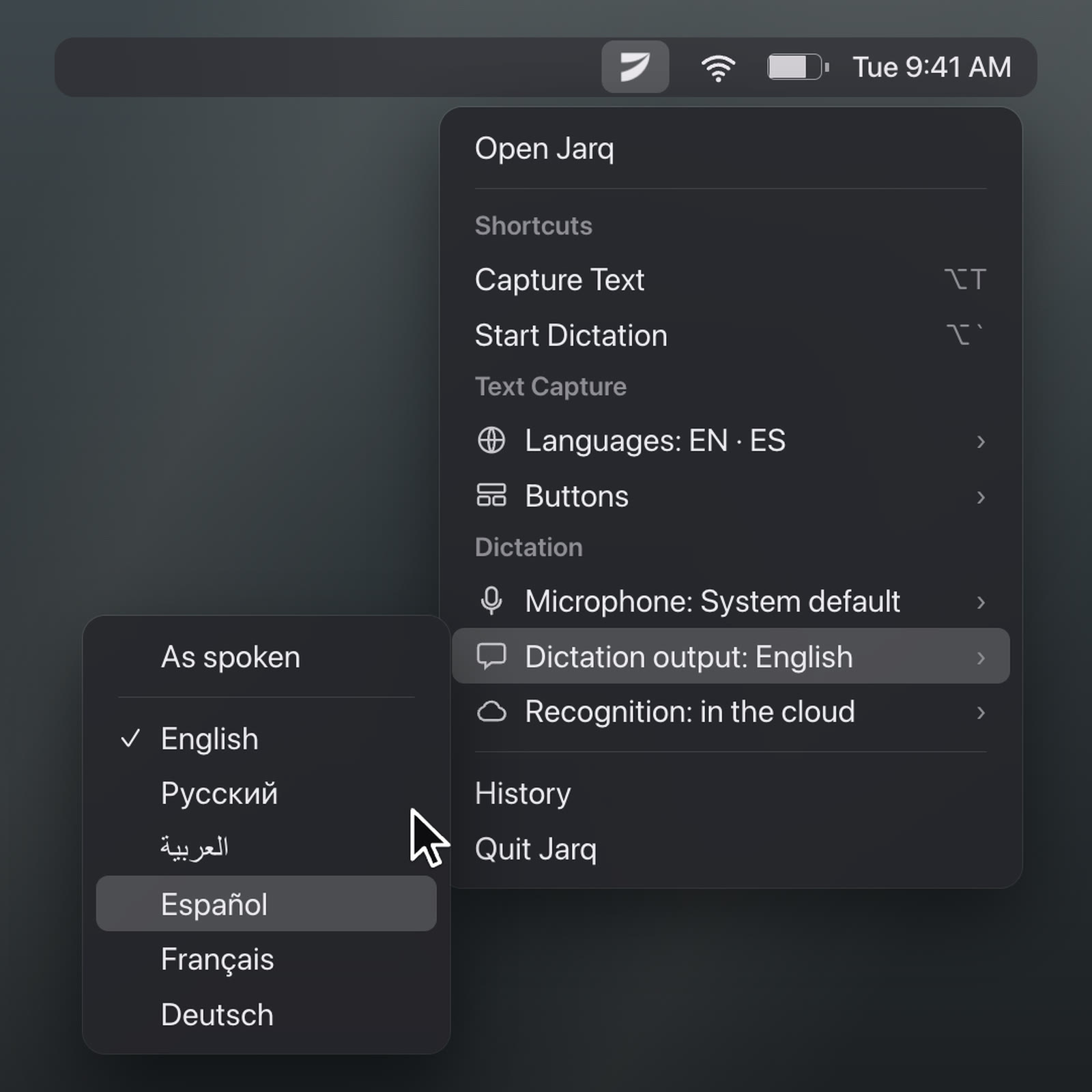
- Type in another language. Dictation output in the menu bar menu — also Settings → Dictation → Output language — is As spoken by default. Choose English, speak Russian, and English arrives at the cursor; speak English and nothing is translated. More in Answer in a language you do not write quickly.
- When it guesses wrong. Detection can miss on a phrase of two or three words. Set Spoken language to the language you speak, in Settings → Dictation, and Jarq stops guessing.
- Thirteen languages: English, Russian, Arabic, Spanish, French, German, Portuguese, Italian, Chinese, Japanese, Turkish, Kazakh and Uzbek.
- Offline. With Recognition set to On this Mac (a 632 MB download, once), speech is recognized on your Mac, free and unlimited on every plan. Typing in another language is a translation, and that part needs a connection — dictating offline.
The key can be changed in Settings → Dictation; installs from before ⌥` keep the ⌥Space they had. Every install starts with 14 days of everything; after that the free plan has 5 dictations or translations a day, and on-device dictation is not counted — plans and prices. What arrives in another language is a machine translation, worth a glance before you send it.
Which one to use
| How the language is chosen | Keyboard layout | Type in another language | Cost | |
|---|---|---|---|---|
| macOS Dictation | By you: next to the cursor, the Globe key, or ⌃Space through input sources | Can switch along with it | No | Free |
| Jarq | Detected in every dictation, or set once | Untouched | Yes, with Dictation output | Free 5 a day; Pro from $4.99/month |
If you dictate in one language and switch now and then, macOS is enough: add the language and click it next to the cursor. If you go back and forth between languages all day, or want to answer in a language you write slowly, that is what Jarq is for.
Questions people ask
How can I change the language for dictation on the fly?
Set up two or more languages in System Settings → Keyboard → Dictation → Languages. Then, while dictating, click the language shown next to the cursor, or press the Globe key, and choose another.
Is there a keyboard shortcut to change the dictation language?
Not one for dictation alone. If each dictation language has a matching keyboard input source, ⌃Space switches both at once, as users have reported since 2023. Jarq needs none: it detects the language in each dictation.
How do I change the dictation language without changing the keyboard input source?
Remove that language’s input source in System Settings → Keyboard → Text Input → Edit, and keep the language under Dictation → Languages. Choosing it for dictation then leaves your layout as it was.
How do I change the dictation language on the fly in Ventura or newer?
In Ventura, click the language in the dictation feedback window. In Sonoma, click the language next to the microphone. In Tahoe and macOS 27, click the language next to the cursor; from Sequoia on, the Globe key works too.