Mac dictation not working: why, and how to fix it
Usually it is a setting: Dictation is off, you are pressing a different shortcut from the one it listens for, macOS is listening to another microphone, or Voice Control is on and has taken over. All of it lives in System Settings → Keyboard → Dictation, plus one switch under Accessibility. Google Docs in Chrome and Terminal have causes of their own, further down.
1. The settings that stop it everywhere
Apple’s own checklist, If Dictation on Mac doesn’t work as expected (checked for macOS 27 in October 2026), starts here, and it covers most cases.
- Open System Settings → Keyboard, scroll down to Dictation and turn it on.
- Look at Shortcut in the same place. That is the key Dictation listens for — the Microphone key, a key pressed twice, or your own under Customize. Press that one, or choose Edit → Start Dictation in the app you are in.
- If you use the Microphone key, press and release it. Held down, it opens Siri instead.
- Next to Microphone source, choose the microphone you actually speak into rather than Automatic.
- Next to Languages, click Edit and check that the language and region you speak are selected — how to switch between languages quickly.
- Open System Settings → Accessibility → Voice Control. When Voice Control is on, Apple says, it does the dictating and standard Dictation is not available. Turn it off if you want Dictation back.
Two more points from Apple. The text under the Dictation switch says whether your language is processed on the Mac or needs the internet; if it needs it, check System Settings → Network. And Dictation stops by itself after 30 seconds without speech — by design, not a fault. Still nothing? Switch Dictation off and on, then restart the Mac.
2. It hears nothing, or not your external microphone
If the Dictation prompt appears but no words come, check the microphone first — especially with a USB microphone, a headset or a display that has one built in.
- Connect the microphone, then choose it by name in Keyboard → Dictation → Microphone source. Automatic means the device your Mac thinks you are most likely to use, which is not always the one in front of you.
- Open System Settings → Sound → Input, select the same microphone and speak. If the level barely moves, raise its input volume.
- Make sure nothing covers the built-in microphone — Apple names clothing and your own body — and in a noisy room, use a headset.
3. Google Docs and other pages in Chrome
First find out whether it is the page or the Mac: dictate into TextEdit. If it works there but not in one web app, the web app is the cause, and no setting on the Mac will change that.
Google Docs is the case people ask about most. In Chrome, the Dictation prompt may not come up inside a document, or it comes up and types nothing. The accepted answer on Apple StackExchange (May 2024) is to open the same document in Safari, where macOS Dictation still works. Neither Apple nor Google documents this, so try it before you rely on it.
The other way is Docs’ own voice typing:
- Open the document in Chrome, Edge or Safari — the browsers Google lists as of October 2026.
- Choose Tools → Voice typing. A microphone appears beside the page.
- Click it and speak; click it again to stop.
It works only inside Docs (and Slides’ speaker notes), and its editing commands are English only, per Google’s help page.
4. Terminal
Dictation enters text anywhere you can type, and a shell prompt is such a place — but what lands there is a command. Apple says that saying “new line” is the same as pressing Return, and at a prompt Return runs the line. If dictation does nothing in Terminal at all:
- Open the Terminal menu and look at Secure Keyboard Entry. If it has a checkmark, choose it to turn it off and try again. Apple’s own advice is to make sure other apps do not need keystrokes from Terminal before turning it on.
- Dictate the same words into TextEdit. If they arrive there but not in iTerm2, Ghostty, Warp or another terminal, the terminal is the cause, not the Mac.
How Jarq does it: one key, and the words are pasted
Jarq is a menu-bar app with dictation of its own. It does not repair Apple’s; it records with its own key and microphone setting and pastes the text where your cursor is — so the words go wherever a paste goes.
- Click into any text field.
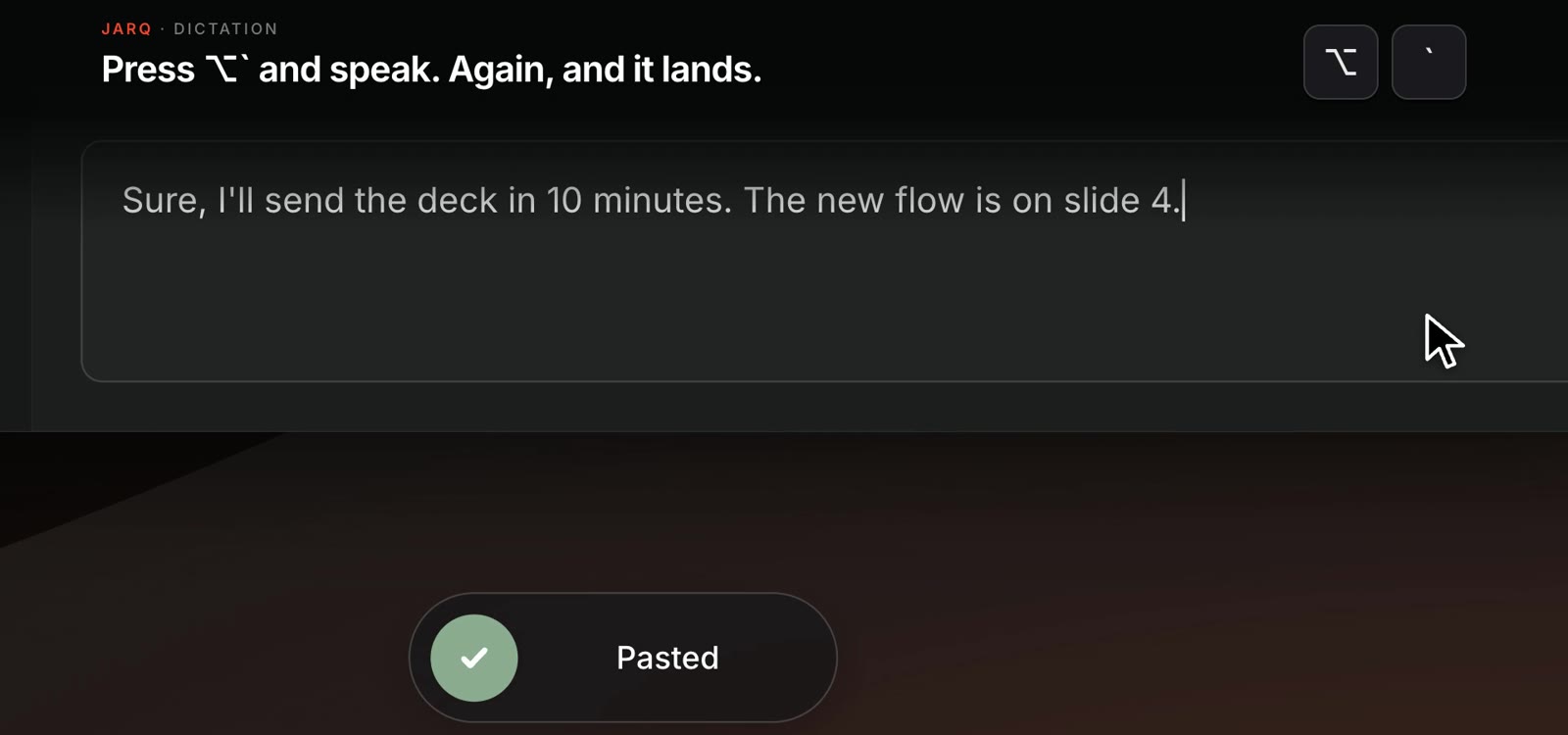
- Press ⌥` — Option and the backtick key — and speak.
- Press it again. The words land at the cursor with punctuation; Esc cancels. If you would rather hold the key while you talk, choose Push to talk in Settings → Dictation, where the key itself can be changed too.
- Google Docs takes it in Chrome or Safari like any other paste — in the document, a comment or the title.
- In a terminal, a one-line dictation is pasted at the prompt and waits for your Return; Jarq never presses it. Anything with a line break goes to the clipboard instead, so nothing runs that you have not read.
- Its own microphone. Pick one in Settings → Dictation → Microphone, apart from the system’s choice. If it hears nothing for eight seconds, it says No speech detected and offers the list of microphones right there; choose one and it records again. AirPods connected only for music are left alone unless you choose them.
- No language to switch. It works out which language you are speaking; for short phrases you can name it in Settings → Dictation → Spoken language.
- Offline, if you want it. Settings → Dictation → Recognition → On this Mac downloads a 632 MB speech model once; after that the recording never leaves the Mac — more in the guide.
- When it cannot type, it does not guess. If no field has the cursor, you switched apps while it worked, or it has lost Accessibility, the words go to the clipboard and show in a small bubble. The two permissions it needs are in the setup guide.
One dictation runs up to 90 seconds; Apple’s has no limit. Jarq needs macOS 13 or later and Apple silicon. Every install starts with 14 days of everything; after that the free plan has 5 dictations or translations a day, and dictation on this Mac is not counted at all. Pro is $4.99 a month as of October 2026 — plans and prices.
Quick reference
| What you see | Where to look |
|---|---|
| Nothing happens when you press the key | Keyboard → Dictation: is it on, and which Shortcut is set |
| Dictation never starts, whatever you press | Accessibility → Voice Control: turn it off |
| The prompt appears, no words arrive | Microphone source, then Sound → Input |
| Works in TextEdit, not in Google Docs | Safari, or Tools → Voice typing in Docs |
| Nothing arrives in Terminal | Terminal → Secure Keyboard Entry |
Questions people ask
Why is my Mac dictation not working in Google Docs?
In Chrome, Docs often does not take macOS Dictation. Open the document in Safari, or use Docs’ own Tools → Voice typing (Chrome, Edge or Safari). Jarq’s dictation arrives as a paste, which Docs takes in Chrome or Safari.
Why doesn’t dictation work with my external microphone?
macOS may be listening to another device. Choose the microphone by name in System Settings → Keyboard → Dictation → Microphone source, then check that its level moves in System Settings → Sound → Input.
Does Mac dictation work in Terminal?
It enters text at the prompt, and “new line” is Return, which runs the command. If nothing arrives, check Terminal → Secure Keyboard Entry. Jarq pastes a single line and leaves Return to you.
How do I turn off dictation on a Mac?
Switch it off in System Settings → Keyboard → Dictation. To keep it but stop starting it by accident, choose a different key in the Shortcut menu there.
Does dictation on a Mac work offline?
It depends on your language and Mac: the text under the Dictation switch in Keyboard settings says whether it is processed on the device. Jarq can dictate offline once its on-device model is downloaded.