Voice typing on a Mac: built-in Dictation, and typing by voice in any app
macOS has voice typing built in: System Settings → Keyboard → Dictation, switch it on, then click into any text field, press the Microphone key or your Dictation shortcut, and speak. In English it adds commas and periods for you. In Russian, Portuguese, Turkish and many other languages it does not, and you say them out loud.
Turn on Dictation
- Choose Apple menu → System Settings, then click Keyboard in the sidebar (you may need to scroll down).
- Go to Dictation, turn it on and confirm with Enable. If you are asked about improving Siri and Dictation, choose Share Audio Recordings or Not Now.
- Next to Languages, click Edit… and select the languages you speak.
- In the Shortcut pop-up menu, choose how to start it: Press Microphone Key, Press Control Key Twice, Press Fn (Function) Key Twice — or Customize… and press keys of your own.
- If you have more than one microphone, choose it under Microphone source.
That is the procedure in Apple’s Mac User Guide for macOS 27.
Dictate
- Click where the text should go: a message, a note, a form on a website.
- Press the Microphone key if your keyboard has one, press your shortcut, or choose Edit → Start Dictation.
- When the cursor highlights and pulses, speak.
- To finish, press Escape, the Microphone key or the shortcut again.
There is no time limit, but Dictation turns itself off after 30 seconds without speech. On a Mac with Apple silicon you can type while it listens. Words it was unsure of are underlined in blue; click one to pick an alternative.
Punctuation and new lines
In supported languages Dictation inserts commas, periods and question marks as you speak; that is the Auto-punctuation switch in the same settings. As of October 2026, Apple’s macOS feature availability page lists it for English, French, German, Spanish, Italian, Dutch, Japanese, Korean, Chinese and Thai. Russian, Ukrainian, Portuguese, Polish, Turkish and Arabic are dictation languages without it. There, or whenever you want a mark of your own:
- Say the name of the mark: “comma”, “period”, “question mark”, “exclamation mark”.
- Say “new line” for one Return or “new paragraph” for two. They appear when you finish dictating.
Where your voice is processed, and which languages
For many languages, English and Russian among them, macOS can recognize speech on the Mac itself once it has downloaded the speech models. Whether yours does is written under Dictation in Keyboard settings.
Kazakh and Uzbek are not dictation languages on macOS. To dictate in two languages, add both under Languages and switch with the language label next to the cursor or with the Globe key; more in how to change the dictation language on the fly.
If Dictation does not start, hears nothing, or types nothing in Google Docs or Terminal, see why Mac dictation stops working and how to fix it.
How Jarq does it: ⌥` and finished text in any field
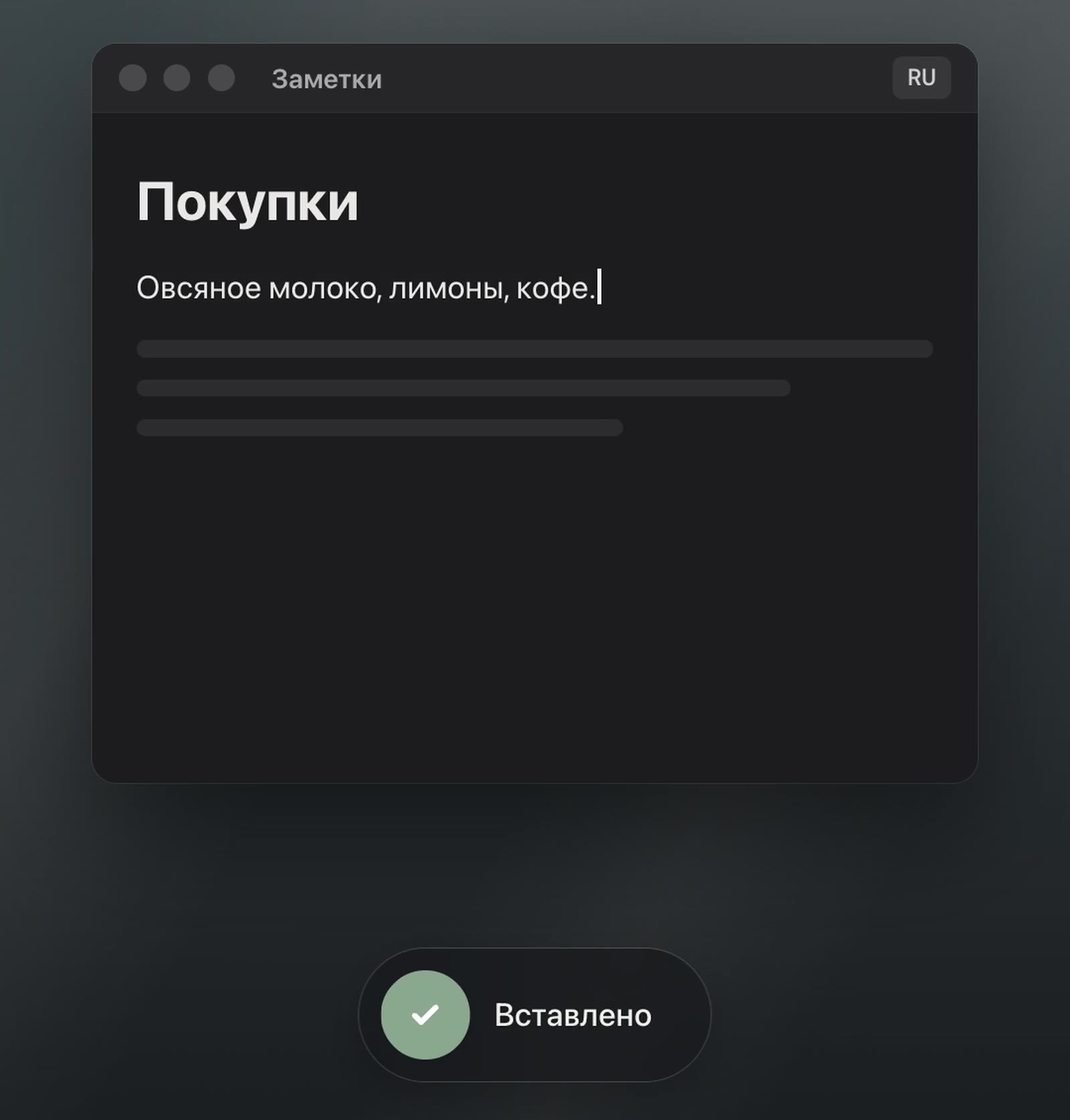
Jarq sits in the menu bar. Click into any field, press ⌥` (Option and the backtick key), say the sentence, and press ⌥` again. The finished text appears at the cursor, in the app you started in. The key works whatever keyboard layout is on.
- No spoken commas. With cloud recognition the transcript gets a second pass that adds the commas and dashes recognition left out, and changes no word.
- The language is detected. Thirteen languages, including English, Russian, Kazakh and Uzbek, with nothing to switch. If a short phrase comes out in the wrong one, set it in Settings → Dictation → Spoken language.
- Speak one language, type another. Output language is “As spoken” by default; set it to English and Russian speech lands in English. That part needs a connection.
- Offline. Settings → Dictation → Recognition → On this Mac downloads a 632 MB Whisper model once. After that your voice never leaves the Mac, and dictation typed as spoken is free and unlimited on every plan; how to set it up.
- Nothing goes astray. Switch windows while it transcribes and the text waits on the clipboard. After a paste, your own clipboard comes back.
- Your way of recording. The default is Keep listening: press, speak with pauses, press again. Push to talk and Auto-stop are the other two. Esc cancels a recording.
- Names that come out wrong are fixed once in Vocabulary and spelled your way after that.
The limits: one recording runs up to 90 seconds, and the text arrives in one piece when you stop, not word by word. Jarq needs Accessibility permission to type into other apps, macOS 13 or later and a Mac with Apple silicon. Every install starts with 14 days of everything; after that the free plan has 5 dictations or translations a day, and dictation on this Mac in the language you spoke is not counted at all; plans and prices.
Which one to use
| Start | Commas in Russian | Offline | Kazakh | Cost | |
|---|---|---|---|---|---|
| macOS Dictation | Microphone key or your shortcut | Spoken (“comma”) | Yes, with downloaded models | No | Free |
| Jarq | ⌥` | Automatic, with cloud recognition | Yes, with the 632 MB model | Yes | Free 5 a day; unlimited on this Mac; Pro from $4.99/month |
If you dictate now and then, in English, the built-in Dictation is enough. If you dictate a lot, in Russian or Kazakh, want punctuation without saying it, or answer in another language, that is what Jarq is for.
Questions people ask
How do I use dictation on a MacBook?
Apple menu → System Settings → Keyboard → Dictation, and switch it on. Then click into a text field and press the Microphone key or the shortcut chosen under Shortcut.
How do I add a new line or a new paragraph when dictating?
Say “new line” or “new paragraph”; they appear when you finish. Punctuation works the same way: say “comma” or “question mark” in languages without Auto-punctuation, Russian among them.
Does Mac dictation work offline?
Yes, for the languages macOS processes on the device, English and Russian included, once the speech models are downloaded. Jarq has its own offline mode, On this Mac, with a 632 MB model; turning what you say into another language still needs a connection.
Is there a free dictation app for Mac?
macOS Dictation is free. Jarq’s free plan has 5 dictations or translations a day, and dictation with its on-device model, typed in the language you speak, is free and unlimited.
Why does Mac dictation keep cutting me off?
Built-in Dictation stops after 30 seconds without speech. In Jarq’s default Keep listening mode pauses do not stop the recording: it runs until you press ⌥` again, for up to 90 seconds.